
Your computer is slow — slower than it should be, in a way that has built up over weeks. The instinct is to buy a solid-state drive, because an SSD is a classic fix for a slow machine. Often it is the right answer. But sometimes the slowness is a symptom of a drive that is failing, and in that case the very act of testing, benchmarking, or trying to clone the drive can be the thing that finishes it off. Here is how to tell the two apart, and why the order of your steps matters when there are files at stake.
Slow is not the same as failing
Everyday slowness and the early signs of drive failure can look similar from the outside, but they point to different actions. Some of what you might see:
- Ordinary slow startup and apps taking longer to open — often storage, memory, or background load, not a dying disk.
- Repeated read errors or a file that will not open and then will, then will not.
- A volume that disappears and reappears, or shows fewer files than it should.
- Freezes while accessing files, especially the same ones, over and over.
- Unusual mechanical sounds — clicking, grinding, or a repeating tick from a spinning hard drive.
The key point: a hard drive with moving parts makes sounds; a solid-state drive has none. So a clicking or grinding noise is specific to a mechanical drive and is a classic warning, as Seagate explains in its guidance on identifying hard drive sounds. An SSD, having no moving parts, will not click — and that is exactly why an SSD can fail in a way that is quieter and easier to mistake for mere slowness. Symptoms alone are not proof of failure. The same slowness can come from low memory, a background process, or an unrelated fault. That ambiguity is the whole reason to check before you buy.
The decision that comes before any test
This is the table that keeps people from making it worse. It separates the low-risk machines from the ones that need a pause.
| If the machine is… | Then it is safe to… | Do not skip… |
|---|---|---|
| Backed up and running stably | Benchmarking, testing, and an SSD upgrade | A current backup before the swap |
| Showing possible failure signs | Nothing that writes to the drive | A data-first pause and an evaluation |
| Holding irreplaceable files with no backup | Only the gentlest checks | Stopping repeated boot/clone/write attempts |
Where the slowness actually comes from
"Slow computer" is a symptom with several possible causes, and a professional separates them rather than guessing:
- Storage — a mechanical drive, or an SSD that is nearly full, is a common bottleneck.
- Memory — not enough RAM forces the system to swap to disk, which feels like slowness.
- Background processes — updates, indexing, or a misbehaving app eating resources.
- Another fault — a failing drive, a failing power supply, or a thermal problem can all masquerade as slowness.
There is also a hardware-shape question that changes what is even possible. Some computers take a standard drive or memory you can swap in. Others, particularly many modern laptops, have soldered or proprietary storage and memory that cannot be upgraded the usual way. Knowing whether your specific model is upgradeable — and how a technician would determine that from the exact machine — is part of what makes a diagnosis useful instead of generic.
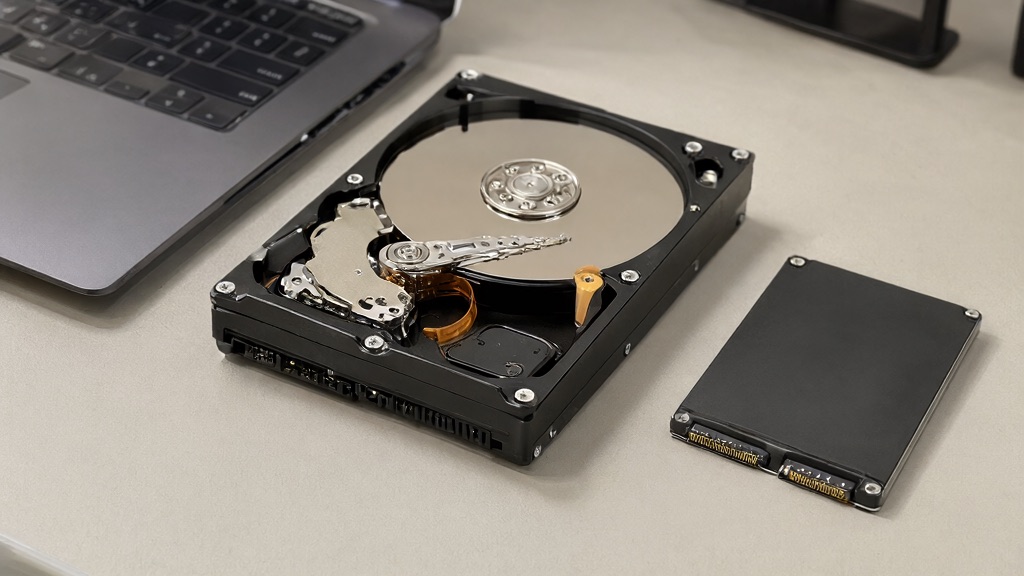
Migrating a healthy drive versus recovering a failing one
These are different jobs. Moving a healthy drive's contents to a new SSD is a routine migration: back up, clone or reinstall, verify. Working from a failing drive is a recovery problem, where the goal is to read what is still readable before it is not, and where recoverability is a case-specific outcome — we will not promise a rate. The honest difference: a healthy source gives you options; a failing source narrows them, and the clock and the data decide the approach.
See the services directory for SSD Upgrade, Hard Drive Replacement, and Data Recovery.
Frequently asked questions
Does every slow PC need an SSD?
No. An SSD helps a lot when the bottleneck is an old mechanical drive, but slowness can come from memory, background load, or a failing disk. The fix depends on the actual cause, which is why it is worth checking first.
Can an SSD fail silently?
Yes, more easily than a mechanical drive, because it has no moving parts to make warning sounds. An SSD can degrade and report errors only intermittently, so "it is an SSD, it cannot wear out" is a false comfort.
Can I clone a failing drive?
Be cautious. Cloning reads the whole drive, which stresses a degrading one. If failure is suspected and the data is not backed up, evaluation before cloning is the safer order.
Is my Mac's storage upgradeable?
Depends on the model. Many Macs use soldered storage that is not user-upgradeable. The exact model determines whether an upgrade is possible at all, so bring the model and we will confirm.
Bring the symptoms and the backup status
Call us with what you are seeing — the slowness, any sounds, any errors — and whether the files are backed up. That combination is what tells us whether this is an upgrade or a data rescue. Contact us to schedule an appointment, or call 716-771-2536 for a drop-off by appointment in Amherst, NY. We service Mac and PC, and we protect the data before we touch the hardware.