
You plug your USB-C charger into the laptop — it fits, the connector clicks home, the light maybe even comes on — and the battery does not charge. Or it charges glacially. Or it works some days and not others. Because the plug physically fits, it is easy to assume the charger is fine and blame the battery. But "fits" and "charges" are not the same thing. USB-C charging depends on a whole chain — the port, the power it negotiates, the cable, and the charger — and any weak link in that chain can leave the battery draining. Here is how to isolate where the problem actually is.
"Fits" is the least of what has to be true
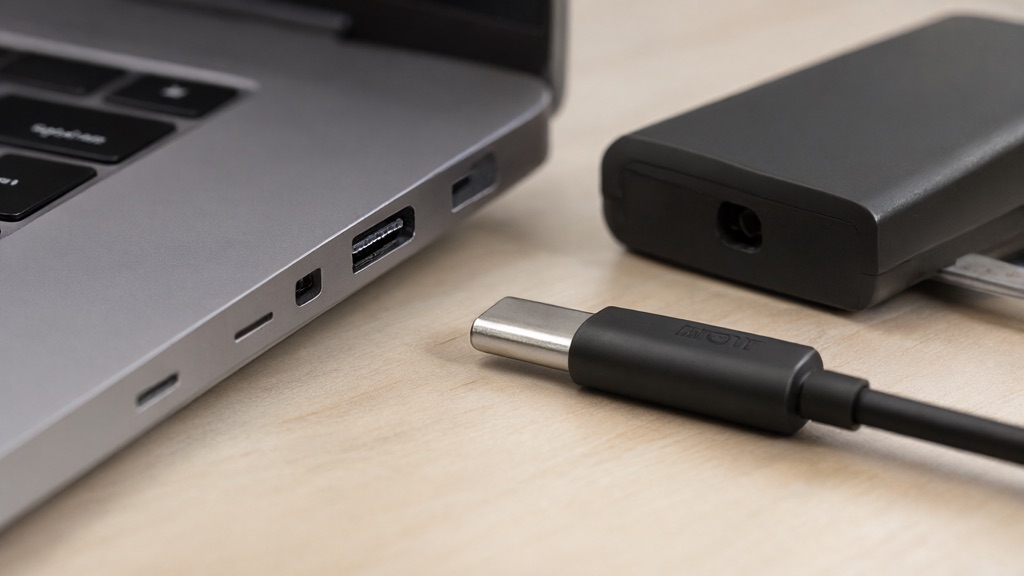
Four different things have to line up for a USB-C port to actually charge a laptop, and the connector shape is only the first:
- Connector shape — the physical USB-C plug. This is the part "it fits" refers to.
- A charging-capable port — not every USB-C port on a laptop delivers power. Some are data-only, or charge only under certain conditions.
- Charger power profiles — the charger has to be able to negotiate enough wattage for this specific model.
- Cable capability — the cable has to carry the current and signal the charger and laptop need.
The result depends on the combination and on what this model requires. A charger that is perfect for a phone is often far too weak for a laptop, and a laptop that needs, say, 60+ watts to charge while in use may only get enough from a smaller adapter to trickle — or to run the machine while the battery still drains under a real workload. Low wattage can support light use while the battery quietly drops under heavier load, which is why "it charges a little" is not the same as "it charges." USB-IF's guidance on cable and connector markings and your laptop maker's power-adapter guidance, such as Apple's Mac power adapter guidance, are where the model-specific requirements live. Note that certification markings on a cable tell you what it is rated for, but not every cable that exists clearly shows what it can do.
A symptom-to-cause table
Match what you see to where to look, before you buy anything.
| What you see | Likely weak link | What to check |
|---|---|---|
| No charge, no indicator | Port not charging-capable, or dead connection | Is this the port that charges? Try the other charging port if there is one |
| Charges very slowly | Insufficient negotiated wattage | Does the charger meet the model's required power? |
| Works with one charger, not another | Charger output or profile mismatch | Compare wattage and connector of the two chargers |
| Charges direct, not through a dock | Dock overhead or limitation | Does the dock pass through enough power for this model? |
| Intermittent, worse when moved | Cable or connector seating | Try a known-good cable; inspect for bent pins |
| Nothing works, even the original charger | Possible hardware fault | Stop and get it assessed — do not keep forcing it |
Run one controlled test
The cleanest way to isolate the problem is to remove variables, one at a time, in a known-good setup:
- Use the manufacturer's own charger (or a confirmed-compatible, known-good one), connected directly to the laptop — no dock, no hub, no splitter.
- Follow the model's guidance for which port charges and whether it must be off or on to accept power.
- Try a known-good cable if the setup uses a detachable one.
- Watch the charging indicator for a few minutes and note exactly what it does.
Inspect only externally: look for a bent connector pin, a loose port, or damage. Stop and do not keep testing if you see liquid, swelling, sparking, unusual heat, or a damaged power connector. Those are safety signs, not things to probe. A controlled test tells you whether the problem is the charger, the cable, the dock, the port, or the machine — which is the difference between a $30 cable and a repair.
How to describe it when you call
Four facts make a charging problem assessable by phone: the exact laptop model, the charger's rating (wattage and connector), the cable type, and the exact behavior (no charge, slow, intermittent, direct-only). One honest boundary: a laptop that will not charge does not by itself prove the battery is dead, and we will not recommend board repair we do not offer. See the services directory for Computer Diagnostics and Battery Replacement.
Frequently asked questions
Can any USB-C port charge a laptop?
No. Some USB-C ports are data-only or charge only under specific conditions. Check your model's documentation for which port is meant to deliver power.
Can a cable limit power?
Yes. A cable rated for lower current, or a damaged one, can cap how much power reaches the laptop even with a strong charger. A known-good cable is part of the test.
Why does it charge without the dock but not through it?
The dock has to pass through enough power for your model. Some docks or cables in the chain deliver less than the laptop needs, so direct charging works while the dock path does not.
When is a battery replacement plausible?
When the charger, cable, dock, and port all check out as good and the battery itself no longer holds or accepts a charge. That is a diagnosis, not a first guess — the isolation test comes first.
Call with the model and the behavior
Tell us the laptop model, the charger rating, and whether it charges when plugged in directly. That is usually enough to point at the weak link. Contact us to schedule an appointment, or call 716-7712536 for a drop-off by appointment in Amherst, NY. We service Mac and PC, and we start with the safe, cheap checks before anything bigger.