
Your Windows 10 PC still boots, the familiar programs still open, and nothing on the desktop has visibly changed. That can make the end of support feel like a non-event. It is not. The computer working is one thing; the computer still receiving security fixes is another. As of November 2026, Microsoft's consumer Extended Security Updates (ESU) for Windows 10 have closed, so most home machines no longer get the security fixes that keep them safe to use online.
What actually ended, and when
Two different dates matter here, and mixing them up leads to bad decisions.
- October 14, 2025 — mainstream, in-box support for Windows 10 ended. After this, Microsoft stopped pushing the regular monthly quality and security updates to most home installations.
- October 13, 2026 — the window for consumer Extended Security Updates ended. During that ESU window, enrolled consumer devices could keep receiving security fixes. That enrollment period is now over.
The practical result: a typical home Windows 10 PC in late 2026 is running an operating system that no longer receives the security updates Microsoft relies on to patch newly discovered vulnerabilities. It may still feel fine. It is still accumulating exposure to the same exploits that are patched on supported systems. You can confirm your exact situation on Microsoft's Windows end-of-support page and the Extended Security Updates lifecycle FAQ.
"It still turns on" is not the same as "it is still safe"
Continued operation and continued security patching are separate facts. A machine can run your email, browser and office apps on a day when it is no longer patched. The risk is quiet: an unpatched flaw in the operating system can be exploited the moment your browser, mail client, or a file you open touches it. Antivirus and a firewall help, but they cannot replace missing operating system updates, because the gap is in the OS itself, not in a downloaded file.
Do not treat "it boots" as a reason to wait. The safer question to ask is whether this specific PC is eligible for a supported operating system, and what you depend on that would be affected by moving it.
Your realistic options
1. Upgrade this PC to Windows 11, if it qualifies
If the machine meets Windows 11's requirements (modern CPU, TPM 2.0, compatible hardware) and the software you rely on runs on it, an official in-place upgrade is often the least disruptive path. This is where a careful check pays off: some models fail the compatibility test, and some pass it but lose a feature you actually use. We can review eligibility and migration before you commit. Our OS Upgrade service covers exactly that conversation.
2. Move your data to a supported PC
If the hardware cannot run Windows 11, or the upgrade would break the applications you depend on, the cleaner move is often to put your files on a supported machine and retire the Windows 10 box. This is the option that avoids carrying an unpatched operating system as your daily driver.
3. A carefully managed exception, in limited cases
Some business environments run Windows 10 deliberately, under commercial ESU or long-term-service-channel (LTSC) agreements, with the network isolated and the risk accepted in writing. That is a managed, documented decision with a known cost. It is not the same as a home user hoping the machine "probably doesn't matter," and it does not apply to most consumer editions. We separate these lifecycles rather than assuming every Windows 10 install shares one date.
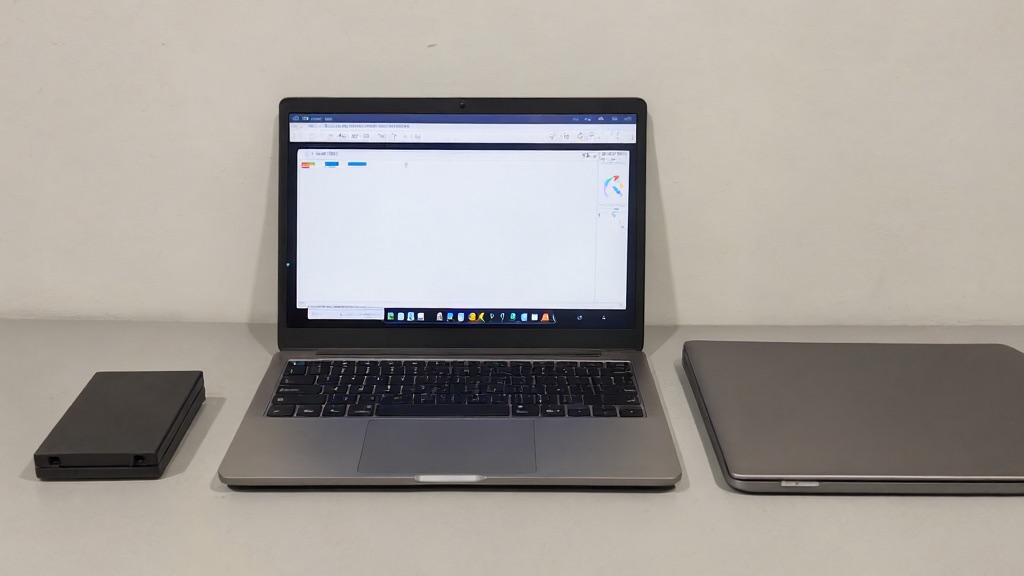
A worksheet to decide in ten minutes
| Check | What to find out | What it tells you |
|---|---|---|
| Model and CPU | Manufacturer, model, processor (Settings > About on Windows 10) | Whether Windows 11 is even a candidate |
| Official eligibility | Run Microsoft's PC health / compatibility check | Pass, fail, or needs a workaround |
| Dependent apps | List the programs this box must run | Whether the upgrade preserves what you rely on |
| Printer / peripherals | Which drivers matter | Whether hardware survives the move |
| Backup | Confirm a current, verified backup exists | Your safety net before any OS change |
Before you change the operating system, back up. After the move, verify the apps, the printer, and your data actually made it across. An upgrade that "succeeded" but silently left a program behind is still a problem worth catching early.
Frequently asked questions
Will my PC still turn on?
Usually, yes. End of support stops security updates; it does not switch the machine off. The change is to its safety, not to its ability to boot.
Can home users still enroll in ESU?
No. The consumer enrollment window ended in October 2026. Ongoing consumer coverage is not currently available the way it was during the ESU period, so the decision shifts to upgrading or replacing.
Do business editions have different timelines?
Yes. Commercial ESU and LTSC lifecycles run on their own schedules and agreements, separate from the consumer dates. If your PC is work-managed, check with your IT team before changing anything.
What should I back up before upgrading?
Documents, photos, browser bookmarks, license keys, and any app data that is not re-downloadable. Verify the backup by opening a few files, not just by trusting that it completed.
Get an eligibility and migration review
The honest answer depends on your specific model, your software, and what you need the machine to do. If you are not sure whether to upgrade, replace, or hold on, bring the decision to us. Contact us to schedule an appointment, or call 716-771-2536 for a drop-off by appointment in Amherst, NY. We service Mac and PC, and we will walk you through eligibility, backup, and the safest way to move your data.